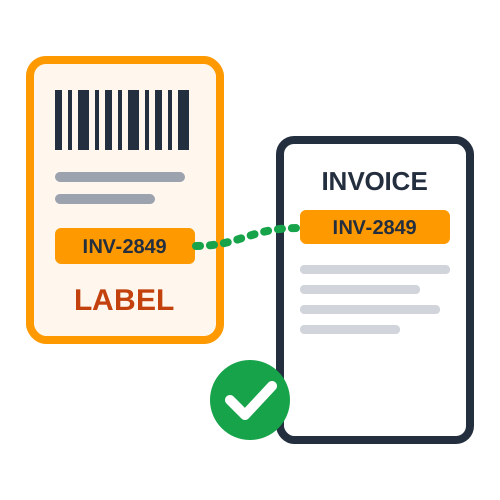
Sometimes you do not have two separate files - labels and invoices arrive together in one PDF. Quick Cropper's Amazon Seller Flex label crop handles that too.
How a Combined PDF Is Handled
- Pages Are Sorted :
Label pages and invoice pages are recognised automatically.
- Pairs Are Matched :
Each label is matched to its invoice by invoice number.
- Output Is Ordered :
The new PDF has each label followed by its own invoice.
Extra Invoices in Another File
If some invoices are in a separate PDF, add that file as well - they are matched together with the invoices from the combined file.
Why Some Downloads Combine Labels and Invoices
Depending on how your Seller Flex site and printing settings are set up, you may receive labels and invoices in a single PDF instead of two files. In a combined file, the pages may alternate between labels and invoices, or all labels may come first followed by all invoices, and the order does not always match. Printing such a file as it is means someone has to separate the pages by hand and find the right invoice for each label, which is slow and error-prone on a busy day.
How Page Types Are Recognised
Shipping label pages and invoice pages look very different: labels are small and contain a large barcode and address, while invoices are full pages with tables of products, prices and taxes. The tool uses these differences to recognise which pages are labels and which are invoices, then reads the invoice number from each so they can be paired. Multi-page invoices are kept together as one invoice, so no page is separated from the rest of its bill.
Choosing the Output Layout
- Thermal Printing :
Choose 4 x 6 inch pages so both labels and invoices print on your thermal printer.
- A4 Printing :
Choose A4 for a regular office printer, with labels printed at their real size.
- Original Sizes :
Keep labels and invoices at their downloaded sizes if you print them on different printers.
Checking the Result
Before printing the full batch, scroll through the first few pages of the output and check that the invoice number on each label matches the invoice that follows it. Look at the report for any unmatched labels or invoices. If everything looks right, print the whole file and pack each order with its label and invoice together. If you need to move or remove a page in the output, open it in Rearrange PDF; to send one order's pages to someone, take them out with Split PDF.
Frequently Asked Questions
What if the combined file has missing invoices? The labels without a matching invoice are listed in the report and placed at the end, so you can download the missing invoices and add them.
Can I add a second file with more invoices? Yes. Add it alongside the combined PDF and all invoices are matched together.
Does this work with ZPL labels? Yes. ZPL labels can be uploaded separately and matched with the invoices in the PDF.
Do I need to split the combined PDF myself first? No. Upload the file as it is, and the label and invoice pages are separated and matched for you automatically.
Saving Time on Busy Days
On days with many Seller Flex orders, the time saved by automatic separation and matching adds up quickly. Instead of sorting pages by hand for every order, you upload one file, check the report and print a ready-to-pack PDF. Your packing team gets each label with its invoice in order, so they can focus on packing products correctly rather than searching through paperwork. This makes it easier to meet pickup times even when order volumes are high, and it reduces the stress on your team during sale events.
Conclusion
One file or two, the result is the same: a print-ready PDF with every label next to its invoice, from the Seller Flex label crop tool.
 ShopsyCrop Shopsy Label with Invoice & Order Details
 GlowRoadCrop GlowRoad Label with Invoice & Order Details