- Amazon
- Flipkart
- Meesho
- Amazon Seller FlexNew
- Shipping Label GeneratorShipping LabelNew
- IndiaMart CRM
- Other tools
- Login

29-09-2026 · Quick Cropper
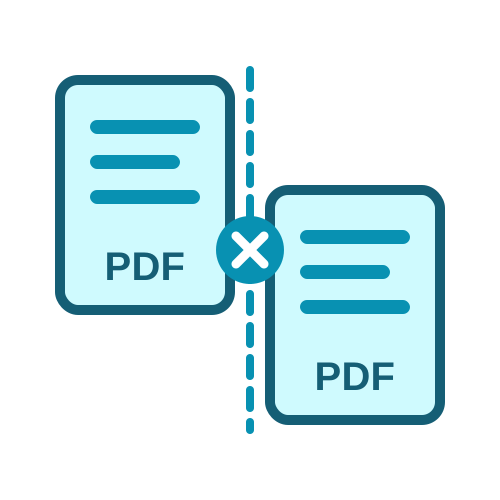
Splitting a PDF and extracting pages sound similar, but they solve different problems. Choosing the right one saves time and gives you exactly the files you need. This guide compares split PDF vs extract pages and explains which Quick Cropper mode to use, with examples, using the free Split PDF tool.
Split when you want the whole document cut into parts. Extract when you want only some pages and do not care about the rest. Splitting usually creates several files, while extracting usually creates one new file with just the chosen pages.
Documents with clear sections, such as chapters or months.
Type ranges like 1-10, 11-25, 26- and each becomes its own PDF.
A ZIP with one file per range, or one file if you save the ranges together.
Range splitting gives you full control over where each part starts and ends.
Documents made of equal parts, such as one-page invoices or two-page forms.
Enter the number of pages per file, or click Every page separately.
Equal files covering the whole document.
This mode is the fastest when every part has the same length.
A few pages from anywhere in the document.
Click the thumbnails or type numbers like 2, 7, 12, or select odd or even pages.
One new PDF with the selected pages, or one file per page if you prefer.
The pages do not need to be next to each other, which makes extracting ideal for picking documents out of a scanned bundle.
A student wants chapters 3 and 4 of a textbook as separate files - split by range. An accountant has 60 one-page invoices in one file - split every 1 page. A job seeker needs the degree certificate on page 4 and the ID card on page 9 - extract pages. A seller wants each courier's labels in its own file - split by range using the courier page numbers.
Yes, in a way. Range mode can save several ranges into one file, which is similar to extracting several blocks of pages. Extract mode can save each selected page as a separate file, which is similar to splitting. Pick the mode that feels easiest for the job - the result can be the same.
Whichever mode you choose, the coloured thumbnails show which pages go into which file, and the list above the button shows every output file. Faded pages are not included. This visual check makes it easy to change the mode if the result is not what you expected.
All modes copy pages exactly, so there is no difference in quality. Text stays sharp and images keep their resolution, whether you split or extract.
The choice between split PDF vs extract pages is simple: split to cut the whole file into parts, extract to take only what you need. Quick Cropper's free tool offers both, so you can extract pages from PDF files or separate PDF pages into parts in seconds. Need to reorder the result? Try ReArrange PDF.
If you are still unsure, start with the mode that matches your first thought. Want the whole file in pieces? Split. Want only a few pages? Extract. You can always switch modes before downloading, because the file stays loaded and the thumbnails update instantly. After a few uses, choosing the right mode becomes second nature, and every job takes less than a minute. The question of split PDF vs extract pages: which Quick Cropper mode to use, is answered here for almost every everyday task, from study notes to business records.
Last Updated: 23-09-2026